Vibe-coding an Android app
Have Antigravity create a playable game with just the prompt "make a fun game".
1) Prepare
Before we begin, you will need to set up your environment.
-
Install Antigravity: You will need a valid Gmail address to authenticate.
-
Install ADB: Any distribution works, but installing Android Studio is often the easiest way to get the latest tools.
-
Connect Device: Plug your Android phone into your computer via a USB cable.
Use the prompt below to tell Antigravity how to do use your phone for Android development.
2) Optional: Launch and screenshot an existing app
For our initial test, we will use a simple existing application. Go to the trusted store F-Droid and select any app such as this prime number checker , then click "Download APK" and save the APK your Antigravity project's folder.
Use the prompt below to instruct Antigravity to install the app and verify it works by taking a screenshot.
That works flawlessly:
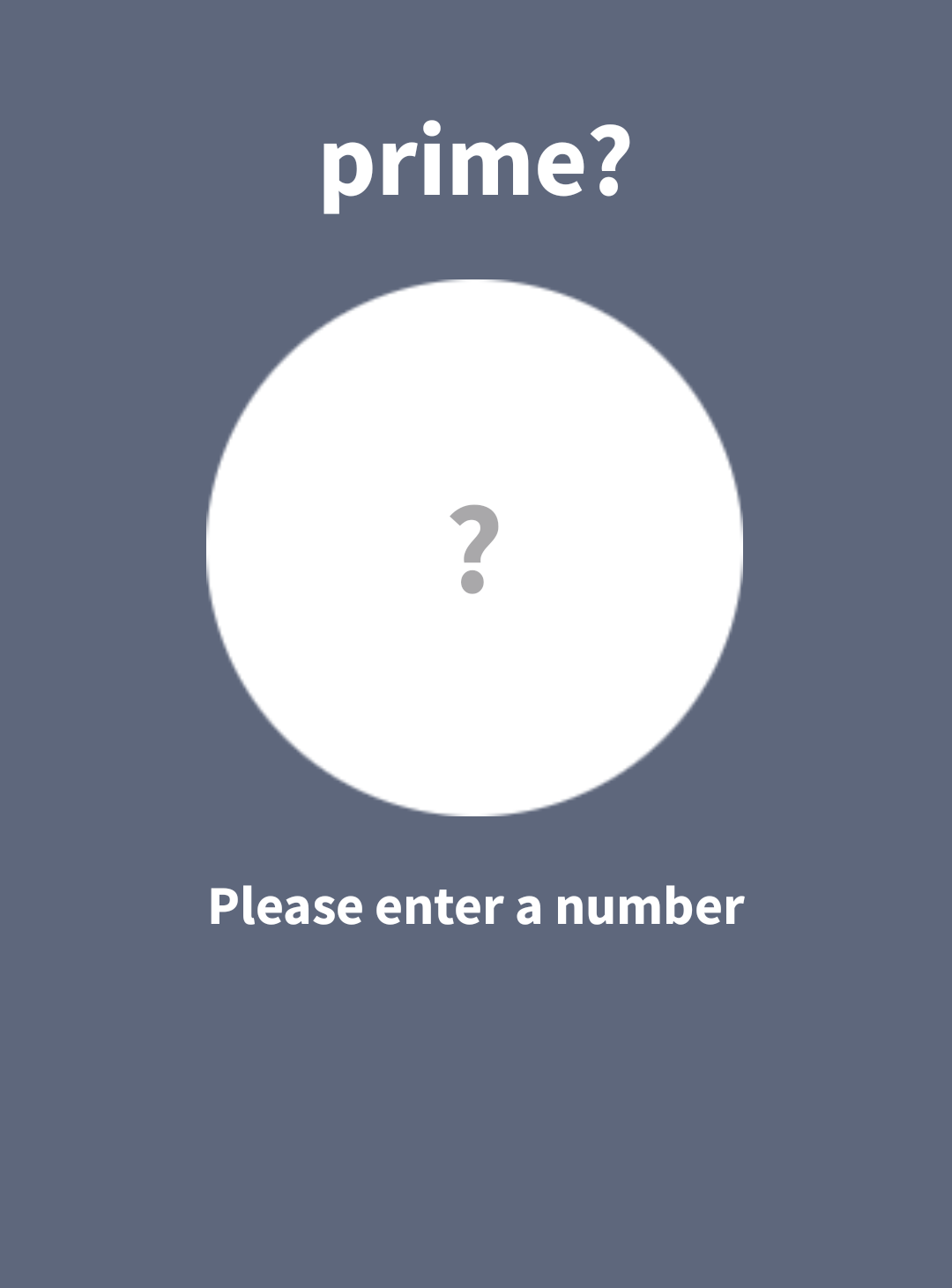
The app launches successfully and the screenshot is retrieved to the local folder.
3) Optional: Create a Basic App
Now let's push the capabilities further. We will ask the AI to code a minimal Android app from scratch, build it, and run it.
Model Comparison
While Gemini 2.5 Pro struggled with creating Android apps from scratch (often missing Gradle dependencies or structure), Gemini 3 Pro handles this request with no issues. Antigravity correctly executes the build commands and captures the result.

A minimal Android activity displaying 'Hello' on the screen.
4) Make a Fun Game
Finally, let's try something creative. We'll ask for a game and use video recording to verify the gameplay loop.
I unfortunately ran out of Gemini quota for today, while it was still iterating.
So I switched to Claude Sonnet 4.5, but it seems to struggle with understanding images (which is crucial to "understand" what is actually happening on the screen). It generated a playable game, but the proportions are off—it likely interprets the grass patch as a background layer rather than a floor element.
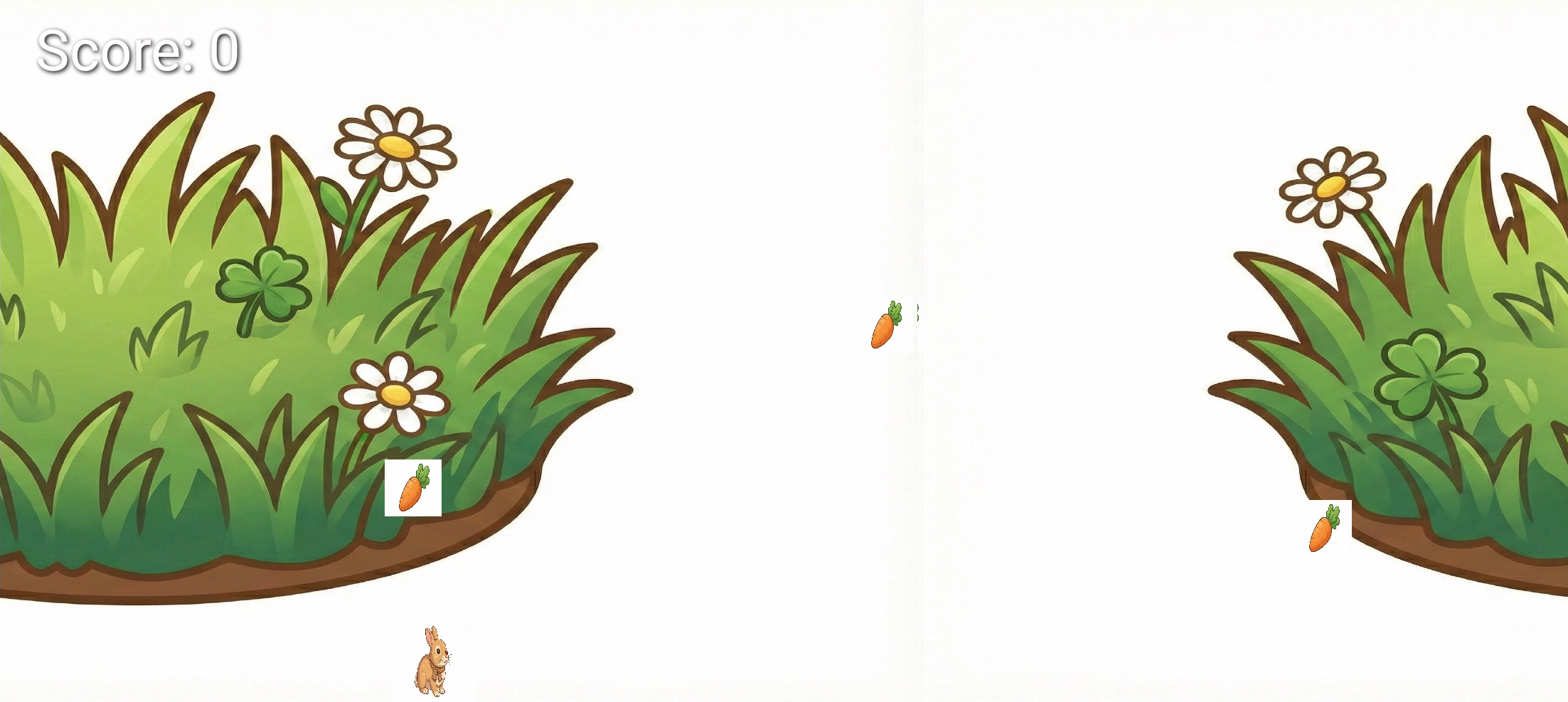
The resulting game: Playable, but visually confused. Can't wait for tomorrow's quota for Gemini to continue iterating on it!